
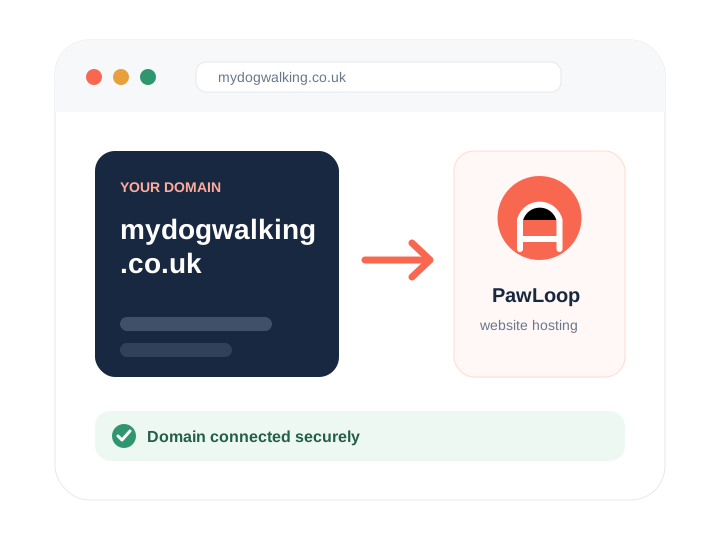
1
Your domain login
This is the company where you bought your domain, such as 123-reg, GoDaddy, Namecheap, IONOS, Cloudflare or another domain provider.
PawLoop website setup
You do not need to be technical. This guide shows you exactly what to change so your domain opens your PawLoop website.
Before you start
This is the company where you bought your domain, such as 123-reg, GoDaddy, Namecheap, IONOS, Cloudflare or another domain provider.
You will find this in your PawLoop website domain settings. Keep that page open because you will copy the IP address into your domain provider.
Step-by-step
Go to your website area in PawLoop, enter the domain you want to use and save it. Enter the main domain only, for example:
mydogwalking.co.uk
www.mydogwalking.co.uk
PawLoop uses the main version of your domain without www.
Look for an area called DNS, DNS settings, Manage DNS or DNS records.
You are looking for a list containing records such as A, AAAA, CNAME, MX and TXT.
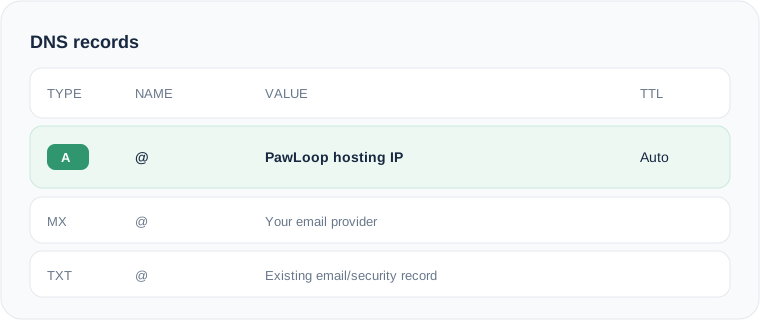
Create an A record using these values:
It simply means your main domain. If your provider does not accept
@, it may ask you to leave the Name or Host field blank instead.
For your main domain, remove old records that point the website somewhere else. In particular, check for:
Remove an old A record for @ if it points to a different IP.
Remove AAAA records for the main domain before connecting to PawLoop.
If your DNS is managed by Cloudflare, make sure the A record is set to DNS only while your PawLoop domain is being connected.
If you do not use Cloudflare, you can ignore this step.
Save your changes in your domain provider. That is the technical part finished.
DNS changes are often visible within a few minutes, but they can sometimes take several hours to update everywhere.
Go back to your website domain settings. PawLoop will check that the domain points to the correct server and will prepare the secure HTTPS certificate for you.
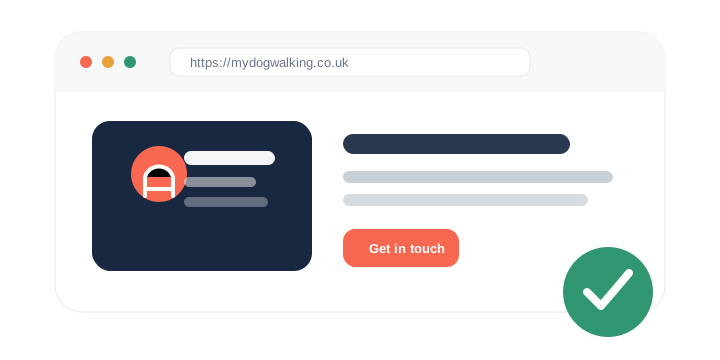
Once the domain is connected, publish your website from PawLoop. Your site will then be available on your own domain.
A quick example
The exact layout will look different depending on your domain provider, but the important information is the same.
| Type | Name | Value | TTL |
|---|---|---|---|
| A | @ |
PawLoop hosting IP | Auto |
| MX | @ |
Your email provider | Auto |
| TXT | @ |
Your existing email/security record | Auto |
Only the highlighted A record is for your PawLoop website. Existing email records should normally remain unchanged.
Troubleshooting
Check that the A record uses @ and points to the exact IP address shown
in PawLoop. If you changed it recently, allow some more time for DNS to update.
Your main domain should point to the PawLoop hosting IP. Remove old A records for
@ that point to previous website hosts.
Remove the AAAA record for your main domain. An old IPv6 record can send some visitors to the wrong server and can stop the secure certificate being created.
Some providers use a blank field instead. Look for wording such as root domain, apex or main domain.
No. You normally only need to change the A record described in this guide. Changing nameservers can affect your website, email and other services.
No. PawLoop uses your main domain without www. Enter and connect
mybusiness.co.uk, not www.mybusiness.co.uk.
Changing the website A record should not affect email. Do not remove MX or TXT records used by your email provider.
That is good news: your domain has reached PawLoop. Return to PawLoop and publish your website. The temporary page will automatically be replaced by your website.
Need a hand?
If you are unsure which record to change, do not guess. Keep your DNS page open and contact PawLoop support with a screenshot of the records you can see.